You commented MAC. Here's the download, the setup, and the five features to turn on first. A quieter music app, windows that behave, and a clipboard that remembers.
By Artem Novitckii · September 19, 2026 · 6 min read
Vorssaint puts everyday Mac utilities behind one menu bar icon. The app is free, with no Vorssaint account or subscription. Start with a handful of features and add more when you need them.
Download the latest stable release. Open the official releases page below and choose the .dmg under Assets. You do not need the source-code ZIP.
Install the app. Open the disk image, drag Vorssaint into Applications, then launch it from Applications. Look for its icon in the menu bar at the top of your screen.
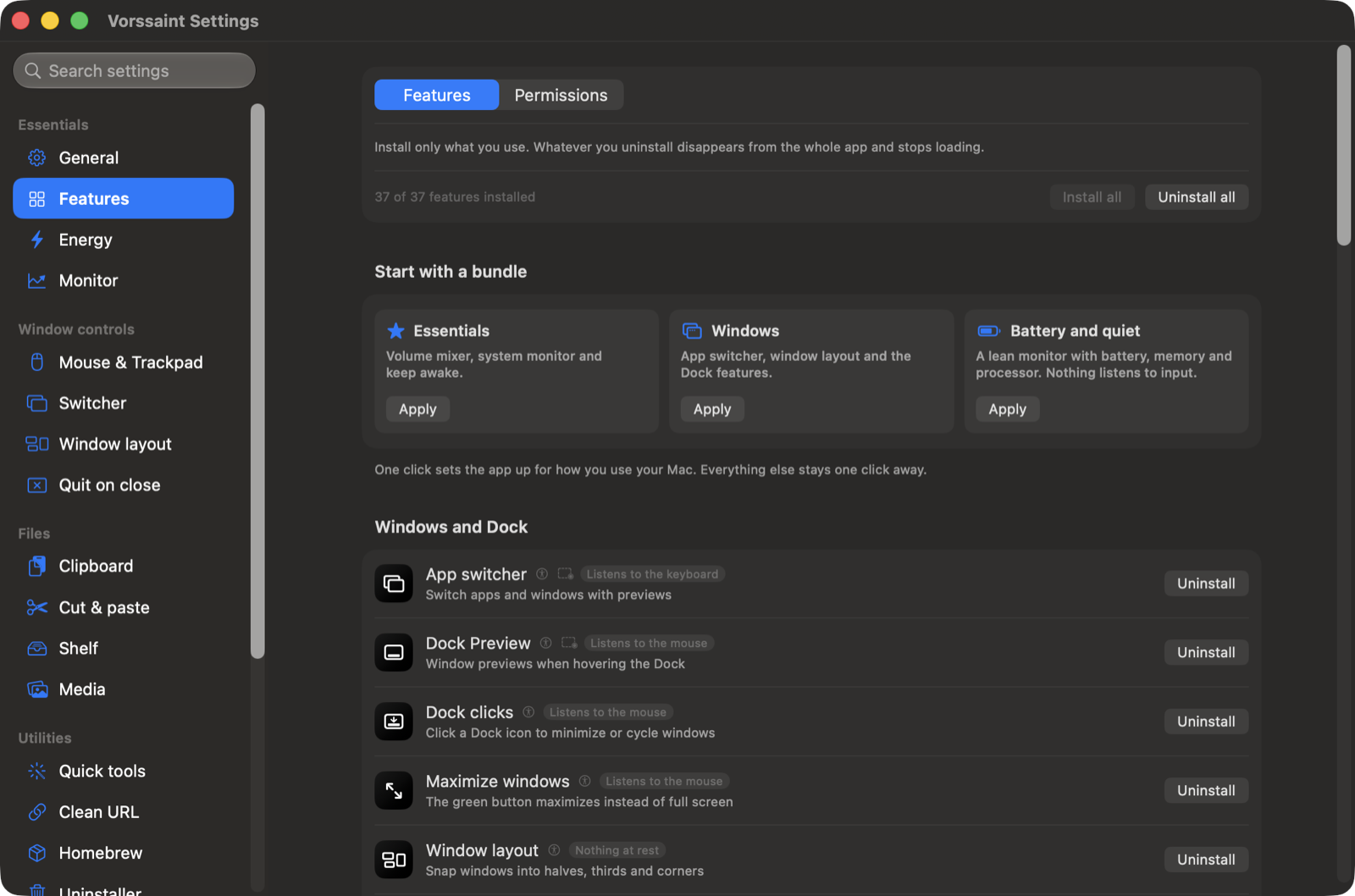
Choose your features. Follow the first-run picker, or open Settings and find Features. Install the five tools below. You can add or remove features later from the same page.
Run this in Terminal, then open Vorssaint from Applications:
brew install --cask vorssaint
Homebrew is optional. The disk image above is enough.
The Features page. Official Vorssaint screenshot; labels can vary by release.
02 / The macOS prompts, explained
Give each feature the access it needs.
Vorssaint's permission prompts explain what uses each permission. You can review them later in System Settings > Privacy & Security. The exact names vary slightly by macOS version.
Accessibility
Window switching, snapping and automatic clipboard paste.
Screen Recording
Live window previews and screen capture. macOS may group this under Screen & System Audio Recording.
System Audio Recording
The per-app volume mixer. The mixer processes audio in memory, rather than saving an audio recording.
Finder Automation
Moving selected app files to the Trash with the uninstaller.
Full Disk Access
Optional. Lets the uninstaller search more protected folders. It can still scan accessible locations without it.
Microphone access is only needed if you choose to record your voice. Camera and calendar access are not needed for these five features.
03 / Start with these five
The useful stuff, switched on.
Work through these in order. Each one ends with a small check so you know it is working.
01
Volume Mixer
Turn down one app. Keep everything else where it is.
In Settings, open Features and install Volume Mixer if it is not already installed. Open the mixer from the menu bar panel.
Play some audio in the app you want to adjust. Allow System Audio Recording when Vorssaint asks, then move that app's slider.
Start with your music lower and your browser at normal volume. You can also route an app to a different output, such as your headphones.
Try it: Play music and a browser video together. Lower only the music app and check that the video's volume stays the same.
02
App Switcher
Find the window you want before switching to it.
Install App Switcher from Features, then enable it in its settings.
Allow Accessibility for window switching and Screen Recording for window previews. That screen permission also lets macOS provide thumbnails; it does not mean a video is being saved.
Open Keyboard shortcuts in Vorssaint's settings and check the assigned switcher shortcut. Choose one that does not clash with another switcher you use.
Try it: Open two windows from the same app and use the switcher. You should be able to pick the specific window from its preview.
03
Window Layout
Put two windows side by side without dragging their corners.
Install Window Layout from Features and allow Accessibility if you have not already.
In Window Layout settings, turn on edge snapping. Choose the screen edges and corners you want to use.
Start with left half, right half and maximize. Assign shortcuts in Keyboard shortcuts if you prefer the keyboard.
Try it: Drag a window by its title bar to your chosen screen edge. Wait for the placement preview, then release. Put another window on the other half.
04
Clipboard History
Get back the thing you copied before the thing you just copied.
Install Clipboard History from Features, then enable history in its settings.
Set a shortcut you will remember in Keyboard shortcuts. Copy a few pieces of sample text, open history and select an older item.
Use search to find saved items and pin text you reuse. Review app exclusions in clipboard settings so sensitive apps stay out of your history.
Try it: Copy 'first', then 'second'. Open history, select 'first' and paste it into a note. Automatic paste needs Accessibility; copying an item and using Command-V is another option.
05
Uninstaller
See the files an app leaves behind when you remove it.
Install Uninstaller from Features and open it from Vorssaint. Drop in an app you actually want to remove.
Review the app and the files it finds before confirming. Related items start unchecked. Keep anything shared with another app or anything you do not recognize.
Allow Finder Automation if prompted to move selected files to the Trash. Full Disk Access is optional and allows a deeper scan of protected folders.
Before you remove anything: Inspect the results first. Only confirm removal when you want the app gone, and leave the Trash intact until you are happy with the result.
04 / One more for creators
Record a quick walkthrough.
Install Screen recording from Features. Open the recorder, choose an area, window or display, and select whether to include system sound or your microphone. Screen Recording permission is required; microphone access is only needed for narration.
Record a short test and stop. The editor lets you trim and cut, adjust audio, smooth the pointer and add optional automatic zooms. Export locally, then play the file back to check the picture and sound.
05 / If something feels stuck
Four quick fixes.
I opened it, but there is no app window.
Check the menu bar at the top of your screen. Vorssaint lives there. Click its icon to open the panel and settings.
The switcher only shows icons.
Check that preview mode is enabled and that Vorssaint has Screen Recording permission in System Settings. Follow any macOS prompt to quit and reopen the app.
Snapping or automatic paste does nothing.
Check that the feature is installed and enabled, then check Accessibility permission. If another utility uses the same shortcut or screen edge, disable the overlapping action in one app. For clipboard history, first test a fresh copy from an app that is not excluded.
The volume slider does not change anything.
Start audio in the target app and check System Audio Recording permission. If the permission is already on but the mixer still asks for it, follow the official troubleshooting steps linked below.
You're set.
Keep the features you reach for. Remove unused ones from Features, and adjust shortcuts as you find your rhythm.
Enter your email to unlock the download link, five features to set up first, and the rest of my resource library. You'll also get my weekly email. Unsubscribe anytime.