The full setup · 5 levels · 36 moves
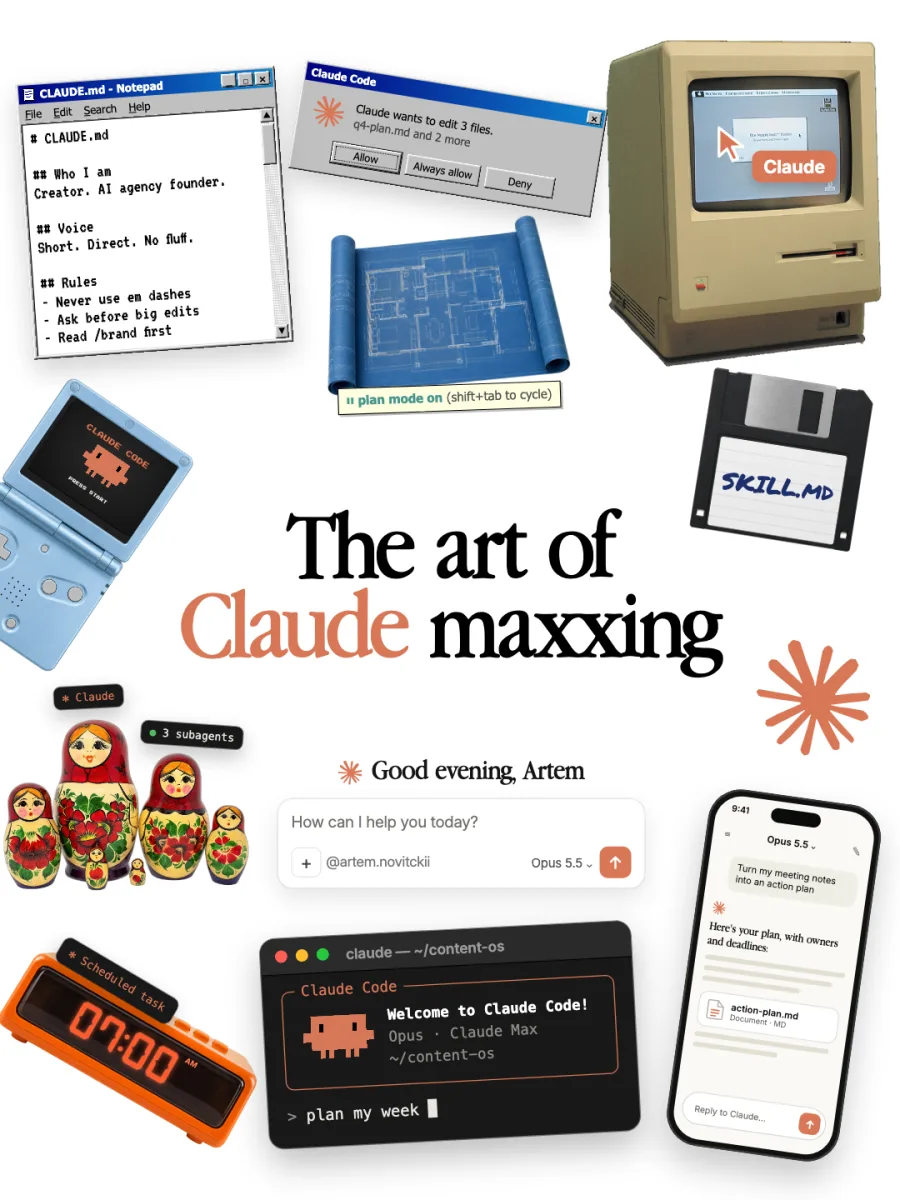
The art of Claude maxxing
The full setup behind the carousel. Five levels, 36 moves, and every template I use, ready to copy.
You commented MAXX. Here’s everything: the full guide, every template, and the setup kit to download.
Most people use Claude like a search bar. They type a question, get an answer, close the tab. Then they wonder why everyone else is getting so much more out of it.
The difference isn't the model. Everyone has the same model. The difference is the setup: what Claude knows about you, what it can do on repeat, how much it can do on its own, what it's plugged into, and how good your taste is at the end.
That's the whole guide:
- 01Context maxxing: Claude knows who you are and how you work
- 02Skills maxxing: Claude does your repeated tasks the same way every time
- 03Agent maxxing: Claude works on its own, even while you sleep
- 04Tool maxxing: Claude is plugged into the apps you already use
- 05Taste maxxing: the output actually sounds like you, not like AI
You don't need to do all of it today. Do one level a day and you'll have the full setup in a week. There's a 7-day plan at the end.
Quick start: the 30-minute version
Short on time? Do these five things today. They get you about 80% of the way.
Everything below is the deep version of these five, plus the stuff that makes it really fly.
The setup kit
Every template, in one folder.
Download it, unzip it, then open START-HERE.md. It says where each file goes.
- CLAUDE.md template: who you are, how you work, your voice and rulesMD
- “How I write” doc: plus the Project instructions templateMD
- Skills pack: a weekly-report skill with reference files, and a /standup commandFolder
- Agent workflows: a researcher subagent and two ready hooksMD
- Connector stack: the 10-minute tool auditMD
- Taste checklist: plus the 7-day plan and the prompt libraryMD
Level 1 of 5
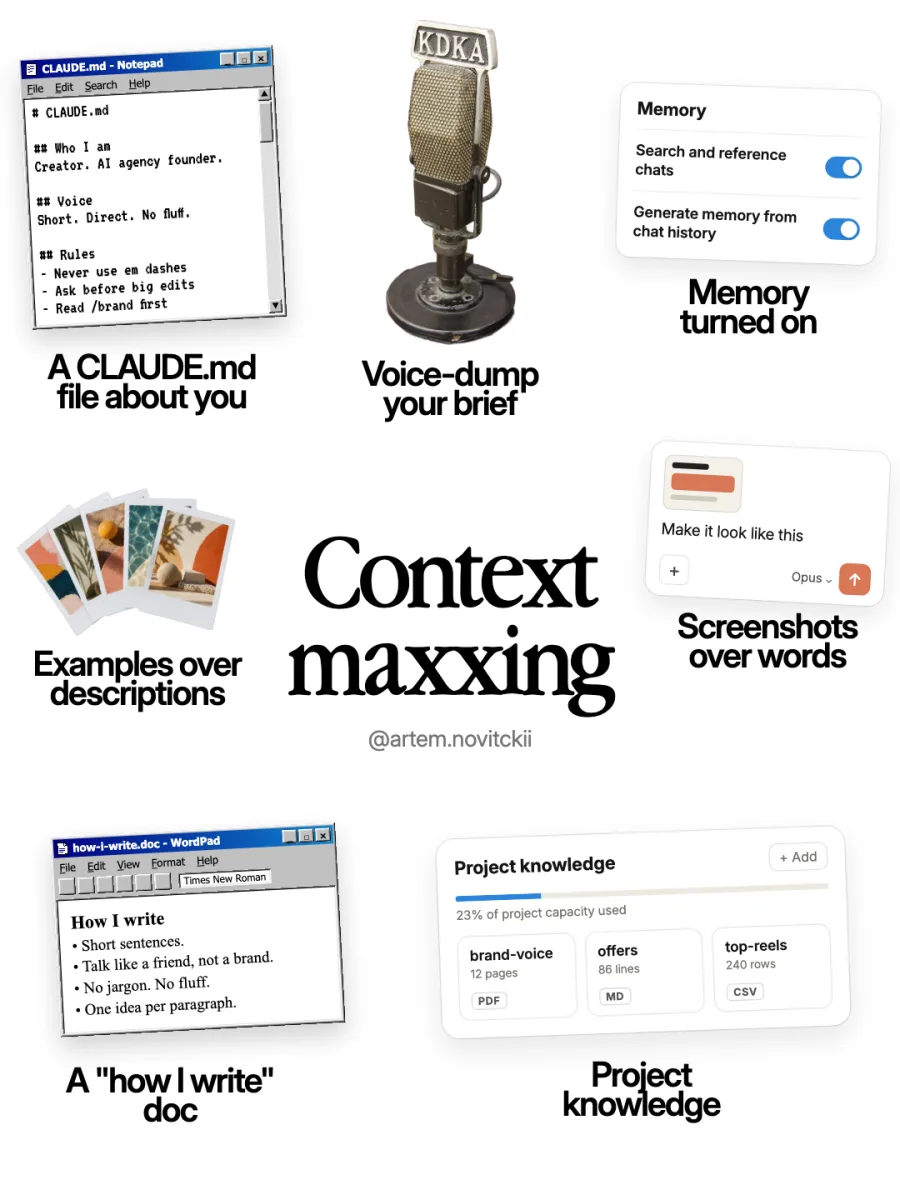
Context maxxing
The ruleClaude can only be as good as what it knows about you.
Every time you open a fresh chat with no context, Claude has to guess who you are, what you want and how you like it. It guesses "average". Average is why AI output feels generic.
Context maxxing means Claude never starts from zero.
1.1
A CLAUDE.md file about you
CLAUDE.mdis a plain text file that Claude reads at the start of every session in Claude Code. Think of it as the onboarding doc you'd give a new assistant on day one.Where it lives:
~/.claude/CLAUDE.md: your global file. Claude reads it in every project. Put you in here.CLAUDE.mdin a project folder: rules for that one project. Put the project in here.
Fastest way to start: in Claude Code, open a project folder and type
/init. Claude scans the folder and writes a first draft for you. Then add the "about me" part yourself.CLAUDE.md template# CLAUDE.md ## Who I am - [Your name], [what you do] at [company / your own business] - My audience / clients: [who they are] - What I'm focused on right now: [current goal] ## How I work - I prefer short answers first, details only if I ask - Ask me before big changes or anything you can't undo - When unsure, give me 2 options and your pick ## My voice - Short sentences. Direct. No fluff. - Talk like a smart friend, not a brand - Never use: "delve", "unlock", "game-changer", "in today's fast-paced world" - Never use em dashes ## Tools and files - My notes live in: [folder / Notion workspace] - Brand and style rules: [path to your "how I write" doc] ## Rules - Read my "how I write" doc before writing anything public - Use my examples folder when I ask for something "like last time"Tip: keep it under a page. Treat it like a living doc. Every time Claude gets something wrong twice, add a line so it never happens again.
1.2
Voice-dump your brief
Typing makes you lazy. You write one line ("write a LinkedIn post about our launch") and Claude has to fill in the other 90%.
Talking fixes that. When you speak, you naturally give 5x more context: why it matters, who it's for, what you don't want, the story behind it.
How:
- Use voice mode in the Claude app, or your computer's dictation (on Mac: press the dictation key, or set a shortcut in Settings → Keyboard)
- Tools like superwhisper or Wispr Flow turn speech into text anywhere
- Ramble for 2 to 3 minutes. Don't edit yourself. Messy is fine.
Add this after your brain dumpThat was a brain dump. Turn it into a clear brief first: goal, audience, key points, tone, and what to avoid. Show me the brief before you write anything.Now you review the brief, fix anything that's off, and Claude writes from something solid.
1.3
Memory turned on
By default, every chat is a blank slate. Memory changes that. Claude can pull context from your past chats so you stop repeating yourself.
How: in the Claude app, open Settings and find the Memory section. Turn on:
- Search and reference chats: Claude can look back at past conversations when it's relevant
- Generate memory from chat history: Claude builds a running picture of who you are and how you work
You can view and edit what Claude remembers at any time, so it stays accurate.
1.4
Examples over descriptions
"Write it in a casual, punchy, engaging tone" means something different to everyone. An example means one thing.
Bad: "Make the subject line catchy and fun."
Good: "Here are 3 subject lines that got the best open rates. Write 10 more in the same style:" (then paste them)
Rule of thumb: for anything that matters, give Claude 2 to 3 real examples of what "good" looks like. Your best past emails, posts, proposals, whatever. One example beats a paragraph of adjectives.
1.5
Screenshots over words
Same idea, visual version. Claude can see images. Stop describing layouts, bugs, designs and spreadsheets in words.
- On Mac:
Cmd + Shift + 4to grab part of your screen, then paste it straight into Claude - Mark it up first if you want: circle the thing, add an arrow
- Works for: "make it look like this", "what's wrong here", "pull the data out of this table", "rewrite this email I got"
A screenshot plus one sentence beats three paragraphs of explanation every time.
- On Mac:
1.6
A "how I write" doc
This is the single biggest upgrade for anything you publish. One doc that describes how you write, plus real samples.
“How I write” template# How I write ## The basics - Short sentences. One idea per paragraph. - Talk like a friend, not a brand. - No jargon. If a 12-year-old wouldn't get it, rewrite it. - Lead with the point. Context after. ## Words I use - [list words and phrases that sound like you] ## Words I never use - delve, unlock, elevate, seamless, game-changer, leverage, synergy - "In today's world...", "Let's dive in", "It's not just X, it's Y" ## Formatting - Hooks: start with a number, a bold claim, or a question - Endings: one clear call to action, never three ## My best work (copy this style) [Paste 3 to 5 of your best posts, emails or pieces. Real ones.]Save it once. Point your
CLAUDE.mdto it. Add it to your Projects. You can also turn it into a Claude Style (see Level 5).1.7
Project knowledge
Projects are workspaces inside the Claude app with their own files and instructions. Everything in a Project is context Claude uses in every chat inside it.
Make one Project per big area of your life or business. For example:
- "My business": offers, pricing, FAQs, brand doc, top clients
- "Content": your "how I write" doc, best posts, content calendar
- "Finances": budget sheet, invoices, goals
What to upload: your brand or "how I write" doc, offer and pricing docs, best past work, FAQs, data exports (CSV), meeting notes.
Project instructions templateYou're my [content strategist / ops assistant / analyst] for [area]. Always use the files in this project before answering. If something isn't in the files, say so instead of guessing. Keep answers short unless I ask for detail.
Level 2 of 5
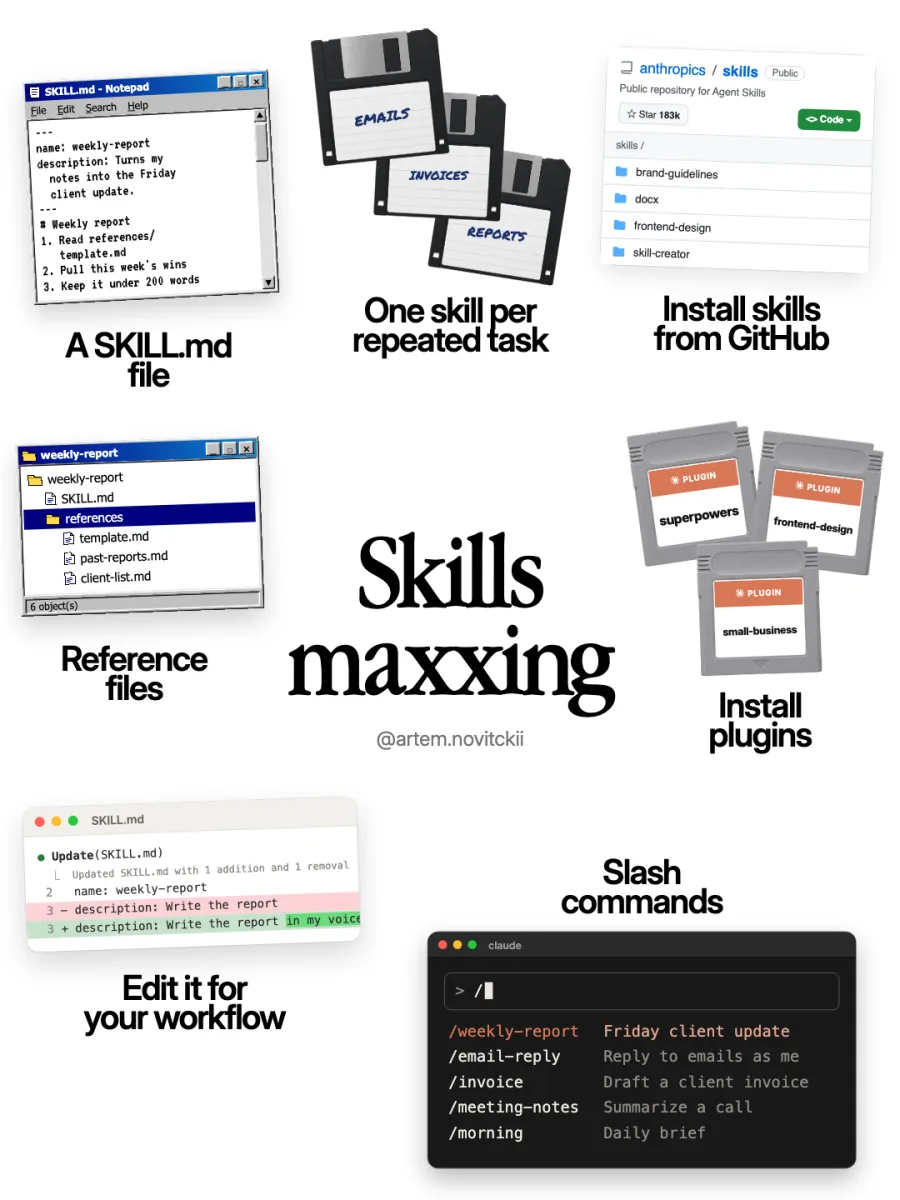
Skills maxxing
The ruleif you've explained it to Claude twice, it should be a skill.
A skill is a folder with instructions (and optional reference files) that teaches Claude how to do one specific job your way. Claude loads it automatically when the task matches, or you call it by name.
Prompts are one-offs. Skills are permanent. Once you write a skill, Claude does that task the same way every single time.
2.1
One skill per repeated task
Start by finding your repeated tasks. Open your notes and list everything you've asked Claude (or done yourself) more than twice in the last month.
Common ones:
Task Skill name Weekly client update weekly-reportReplying to emails in your voice email-replyTurning a call into notes and next steps meeting-notesDrafting invoices invoiceWriting posts in your style post-writerA daily brief from your calendar and inbox morningRule: one skill = one job. A skill that tries to do everything does nothing well.
2.2
A SKILL.md file
Every skill is a folder with a
SKILL.mdfile inside. The top part (between the---lines) tells Claude what the skill is and when to use it. The rest is the instructions.SKILL.md template--- name: weekly-report description: Turns my notes into the Friday client update. Use when I say "weekly report", "client update" or "Friday update". --- # Weekly report ## Steps 1. Read references/template.md for the structure 2. Read references/past-reports.md to match the tone 3. Pull this week's wins, blockers and next steps from my notes 4. Keep it under 200 words 5. End with one clear question for the client, if there is one ## Rules - No jargon. The client is not technical. - Numbers first: what moved, by how much - Never promise dates I haven't confirmedThe description is the most important line. Claude decides when to use the skill based on it. Say exactly what it does and the words you'd use to ask for it.
Where skills live (Claude Code):
~/.claude/skills/<skill-name>/SKILL.md: available in every project.claude/skills/<skill-name>/SKILL.mdinside a project: that project only
In the Claude apps, you can turn on skills in Settings (look for Skills under Capabilities) and upload your own skill folder as a
.zip.2.3
Reference files
The
SKILL.mdsays how. Reference files give Claude the material. Put them in areferences/folder next toSKILL.md:weekly-report/ ├── SKILL.md └── references/ ├── template.md # the structure you want ├── past-reports.md # 3 to 5 great past examples ├── client-list.md # who's who └── tone.md # dos and don'tsClaude only reads these when the skill runs, so you can include a lot without slowing anything down.
2.4
Install skills from GitHub
You don't have to write every skill yourself. Anthropic keeps a public repo of skills at github.com/anthropics/skills: document skills (Word, PDF, PowerPoint, Excel), frontend design, brand guidelines, MCP building and more.
The one to grab first:
skill-creator. It's a skill that helps you build new skills. Tell it what you want ("make me a skill for writing my weekly client update") and it writes the folder for you.How to install:
- Claude Code: add the repo as a plugin marketplace with
/plugin marketplace add anthropics/skills, then browse and install from/plugin. Or just copy a skill folder into~/.claude/skills/. - Claude apps: download the skill folder, zip it, and upload it in Settings.
Other people share skills on GitHub too. Read the
SKILL.mdbefore you install anything, the same way you'd check an app before installing it.- Claude Code: add the repo as a plugin marketplace with
2.5
Edit it for your workflow
A skill you downloaded is a starting point, not the finish line. Open the
SKILL.mdand change it:- Swap the examples for your examples
- Add your rules ("always in British English", "never mention pricing")
- Cut steps you don't need
- Update the description with the words you actually say
The fastest way: ask Claude. "Read this skill and rewrite it for how I work. Here's how I do this task today: [voice-dump it]."
2.6
Install plugins
Plugins are bundles. One plugin can add several skills, slash commands, subagents, hooks and connectors in one install.
In Claude Code:
- Type
/pluginto open the plugin manager and browse - Add a marketplace (a GitHub repo that lists plugins):
/plugin marketplace add <user>/<repo> - Install a plugin from it:
/plugin install <plugin-name>@<marketplace-name>
Good ones to try:
frontend-design(makes Claude design interfaces that don't look generic) andsuperpowers(a big pack of workflow skills: planning, debugging, brainstorming).- Type
2.7
Slash commands
A slash command is a saved prompt you trigger by typing
/name. Skills you install also show up as slash commands, so/weekly-reportruns your weekly report skill.Make your own command (Claude Code): create a file at
.claude/commands/standup.md(project) or~/.claude/commands/standup.md(everywhere):~/.claude/commands/standup.mdLook at what I worked on today (my notes, git history, calendar) and write my standup in 3 bullets: done, doing next, blocked. Extra context from me: $ARGUMENTSNow type
/standup(or/standup client call ran long) and it runs.Skills vs commands: a command is one prompt you trigger by hand. A skill is a full playbook Claude can also pick up on its own. Start with commands for small things, upgrade to skills when they grow.
Level 3 of 5
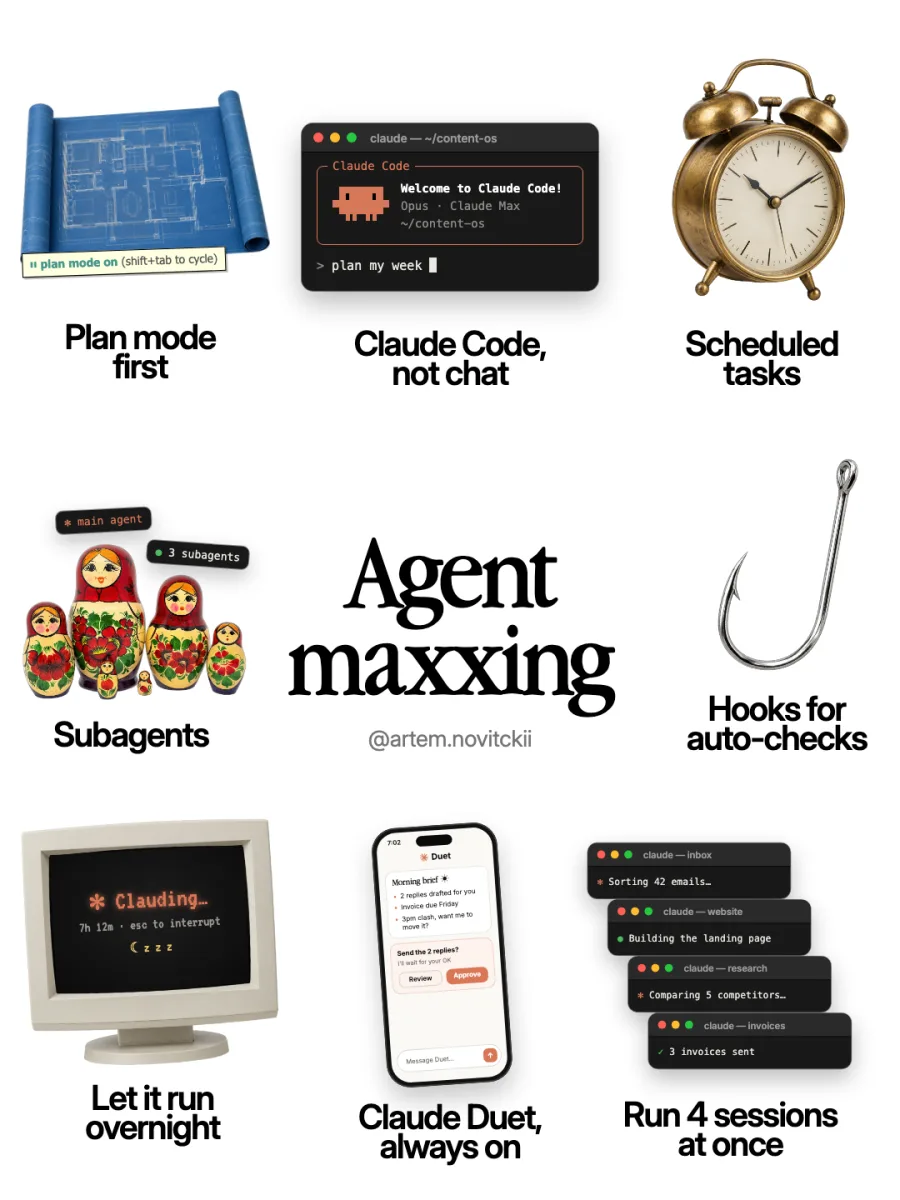
Agent maxxing
The rulestop chatting, start delegating.
Chat is you and Claude going back and forth. Agents are you giving Claude a goal and letting it work through the steps itself: reading files, using tools, checking its work, and coming back when it's done.
3.1
Plan mode first
Before Claude touches anything big, make it plan.
In Claude Code, press Shift + Tab to cycle through modes until you see ⏸ plan mode on. In plan mode, Claude researches and writes a plan but doesn't change anything. You review the plan, fix what's wrong, then let it build.
Why it matters: a 2-minute plan review saves a 30-minute cleanup. Most bad agent runs come from a misunderstanding at the start, and plan mode catches it before it costs you.
Plan-first promptBefore doing anything, make a plan. List the steps, the files you'll touch, and anything you're unsure about. Ask me questions if anything is unclear. Don't start until I approve.3.2
Claude Code, not chat
Claude Code isn't just for developers. It's Claude with hands: it can read and write files on your computer, run things, and work through a long task on its own.
Use it for: organizing folders, processing a pile of PDFs, building a simple website or tool, analyzing spreadsheets, writing and editing docs in bulk, anything with more than ~5 steps.
How to get it: use the Code tab in the Claude desktop app, run it in your terminal, or use it in the browser at claude.ai/code. Setup docs: code.claude.com/docs.
Start with: make a folder, put your messy files in it, open Claude Code in that folder, and say "organize this folder and tell me what you did."
3.3
Scheduled tasks
Some work should happen without you asking. Every morning, every Friday, every first of the month.
- Claude desktop app: set up scheduled tasks that run on a schedule you choose
- Claude Code: use
/scheduleto create routines that run in the cloud on a timer, or/loopto repeat a task at an interval while your session is open
Good first ones:
- 7:00 every day: "Brief me on today: calendar, important emails, anything due"
- Friday 4pm: "Draft my weekly client updates from this week's notes"
- 1st of the month: "Summarize last month's numbers from my finance sheet"
3.4
Subagents
Subagents are helper agents your main Claude can send off to do one job each. Each one gets its own fresh context, so the main conversation stays clean and focused.
Like matryoshka dolls: one main agent, smaller agents inside doing the detail work.
Use them for: research (one subagent per question), reviewing work with a fresh pair of eyes, handling big files without clogging up the main chat.
Make your own (Claude Code): type
/agentsto create one, or add a file at.claude/agents/researcher.md:.claude/agents/researcher.md--- name: researcher description: Researches one question on the web and returns a short brief with sources. Use for any research task. tools: WebSearch, WebFetch, Read --- You're a research assistant. For the question you're given: 1. Search widely, read the best 3 to 5 sources 2. Return a brief of max 200 words with the key facts 3. List every source as a link 4. Say clearly what you couldn't confirmThen: "Use 3 researcher subagents in parallel to compare these 3 competitors."
3.5
Hooks for auto-checks
Hooks are little automatic actions that run at set moments: after Claude edits a file, when it finishes a task, before it runs a command. You set them once and they run every time, no reminding needed.
Examples:
- Get a notification when Claude finishes, so you can walk away
- Run your tests or a spell-check after every edit
- Block Claude from touching certain files
Set them up: type
/hooksin Claude Code, or add them to yoursettings.json. A Mac notification when Claude finishes:Hook: Mac notification when Claude finishes{ "hooks": { "Stop": [ { "hooks": [ { "type": "command", "command": "osascript -e 'display notification \"Claude is done\" with title \"Claude Code\"'" } ] } ] } }Run your tests after every file edit:
Hook: run your tests after every edit{ "hooks": { "PostToolUse": [ { "matcher": "Edit|Write", "hooks": [{ "type": "command", "command": "npm test" }] } ] } }3.6
Let it run overnight
The big one: give Claude a big job at night and wake up to it done.
How to do it well:
- Plan first (tip 1). Approve a detailed plan before you go.
- Give it a clear "done" definition: "Done means all 40 product pages are rewritten, saved in /output, and listed in summary.md."
- Let it work without asking for every edit: in Claude Code, Shift + Tab also cycles to modes that accept edits automatically. Only do this in a folder where nothing important can break.
- Run it in the cloud (claude.ai/code) so it keeps going when your laptop sleeps.
- Ask for a morning report: "When you finish, write summary.md: what you did, what you skipped, what needs my review."
3.7
Run 4 sessions at once
You're not limited to one Claude. Open several sessions and give each one a different job: one sorting your inbox, one building a page, one doing research, one on admin.
- In the Claude desktop app, run several Code sessions side by side
- In the terminal, open a new tab per session
- For code projects, use git worktrees so sessions don't trip over each other's files
Rule: different sessions, different files. Two sessions editing the same doc is a mess.
3.8
Claude Duet, your always-on agentNew
Claude Duet is Anthropic's new personal agent, launched as a research preview in October 2026. Instead of waiting for you to ask, it works ahead:
- Morning brief: each morning it reviews your email and calendar, flags what needs you, and can start first steps, like drafting replies for your review
- Keeps working when you close the app: it runs on its own cloud computer
- Asks before it acts: it checks with you before sending a message, making a payment, signing something or deleting anything
- Works in your apps: it uses the connectors you've set up in Claude (Gmail, Google Calendar, Slack, Stripe and more), plus plugins and its own browser
- Bigger jobs come back as files: research briefs, slide decks and other results show up in its Make tab, and active work sits in a Tasks tab
How to get it: it's in a waitlisted research preview for Claude Pro and Max users in the US, with an app for iPhone and Android. Anthropic is clear it's early, so it can misread a thread or misjudge urgency. Treat it like a new hire: start with low-stakes tasks and review its drafts.
Level 4 of 5
Tool maxxing
The ruleClaude should work where your work already lives.
Copy-pasting between Claude and your apps is the slowest part of using AI. Connect the apps and Claude can read, search and act inside them directly.
4.1
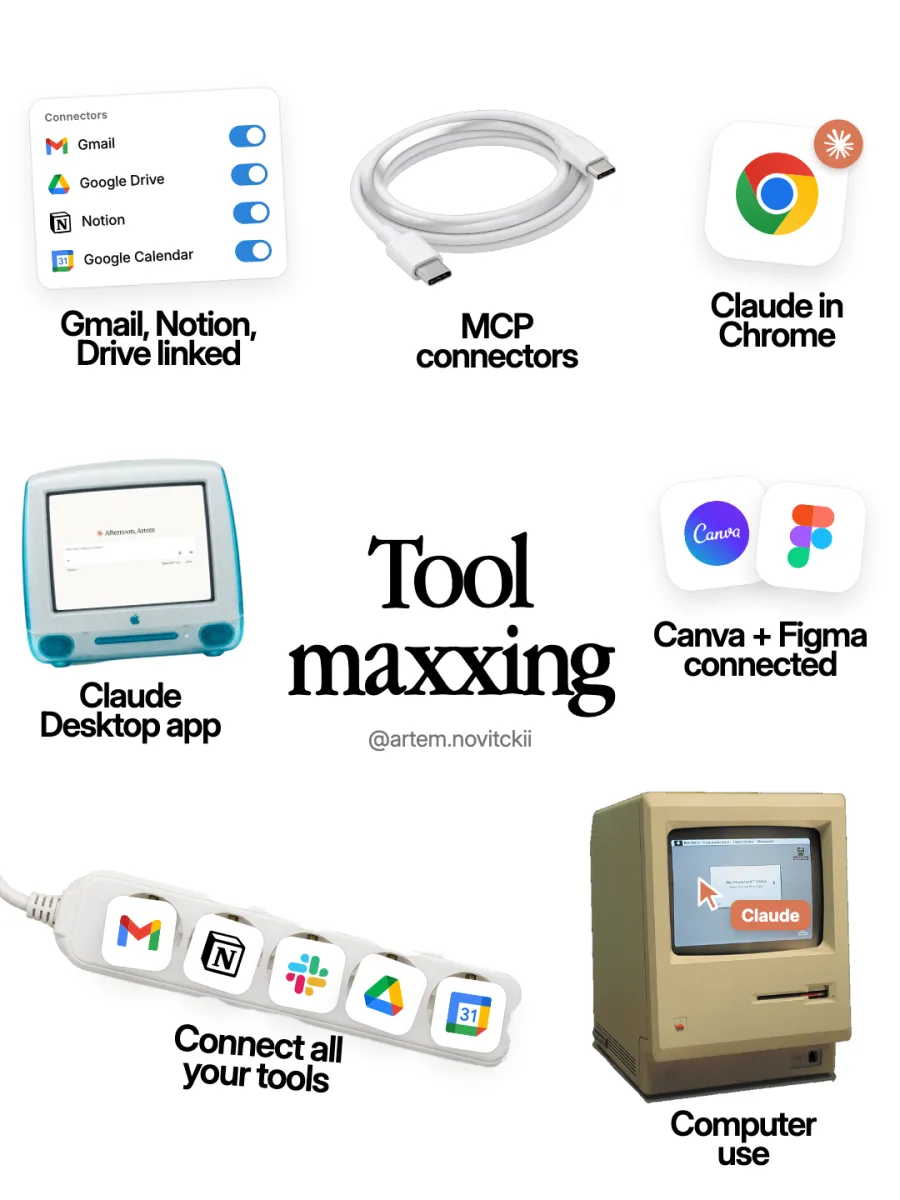
Gmail, Notion and Drive linked
How: in the Claude app, open Settings → Connectors and connect the apps you use. You approve each one and can disconnect any time.
What you can do then:
- "Find the last email from [client] and draft a reply"
- "What's on my calendar this week, and what should I prep for?"
- "Search my Drive for the Q3 proposal and summarize it"
- "Turn this Notion page into a client email"
4.2
MCP connectors
MCP (Model Context Protocol) is the standard that lets Claude plug into almost anything: databases, CRMs, design tools, your own apps. Think of it as USB-C for AI. One standard plug, thousands of tools.
- In the Claude app: browse connectors in Settings, or add a custom connector with a URL your tool provides
- In Claude Code: add an MCP server with
claude mcp add, or install a plugin that includes one
If a tool you use has an "MCP server" or "Claude connector", connect it. Most popular tools have one now.
4.3
Claude in Chrome
The Claude in Chrome extension lets Claude see and work in your browser: read pages, fill forms, click through sites, pull info from tabs.
Use it for: research across lots of tabs, filling in repetitive web forms, comparing products, working in web apps that don't have a connector.
Safety tip: start on low-stakes sites, and keep anything involving payments or passwords in your own hands.
4.4
Claude Desktop app
The desktop app is faster than a browser tab and does more: a keyboard shortcut to open Claude from anywhere, connectors that work with apps on your computer, and Claude Code built in.
Download it at claude.ai/download and set a global shortcut so Claude is always one keypress away.
4.5
Canva + Figma connected
Connect your design tools and Claude can work with your actual designs.
- Canva: create and edit designs, search your existing ones, work with your brand templates
- Figma: read your designs and turn them into code, or push designs into Figma
Great for: "turn this outline into a Canva carousel using my brand kit", "build this Figma screen as a web page".
4.6
Connect all your tools
Do a 10-minute audit. List every app you open in a normal week and check whether Claude can connect to it:
App I use What Claude could do there Connected? Email Draft replies, find threads, summarize Calendar Schedule, prep briefs, find free time Notes / docs Search, summarize, write Slack / chat Summarize channels, draft updates CRM / sales Update records, research leads Payments / finance Pull numbers, flag issues Design Create and edit assets Every box you tick is copy-pasting you never do again.
4.7
Computer use
For apps with no connector at all, Claude can use your computer like you do: look at the screen, move the mouse, click and type. It's slower than a connector, so use it as the fallback, not the default.
Use it for: old desktop apps, one-off admin in tools with no integration, anything you'd otherwise do by hand.
Level 5 of 5
Taste maxxing
The ruleAI makes it fast. Taste makes it good.
Everyone has access to the same AI. The people who stand out are the ones with taste: they know what good looks like, push Claude to get there, and finish it themselves.
5.1
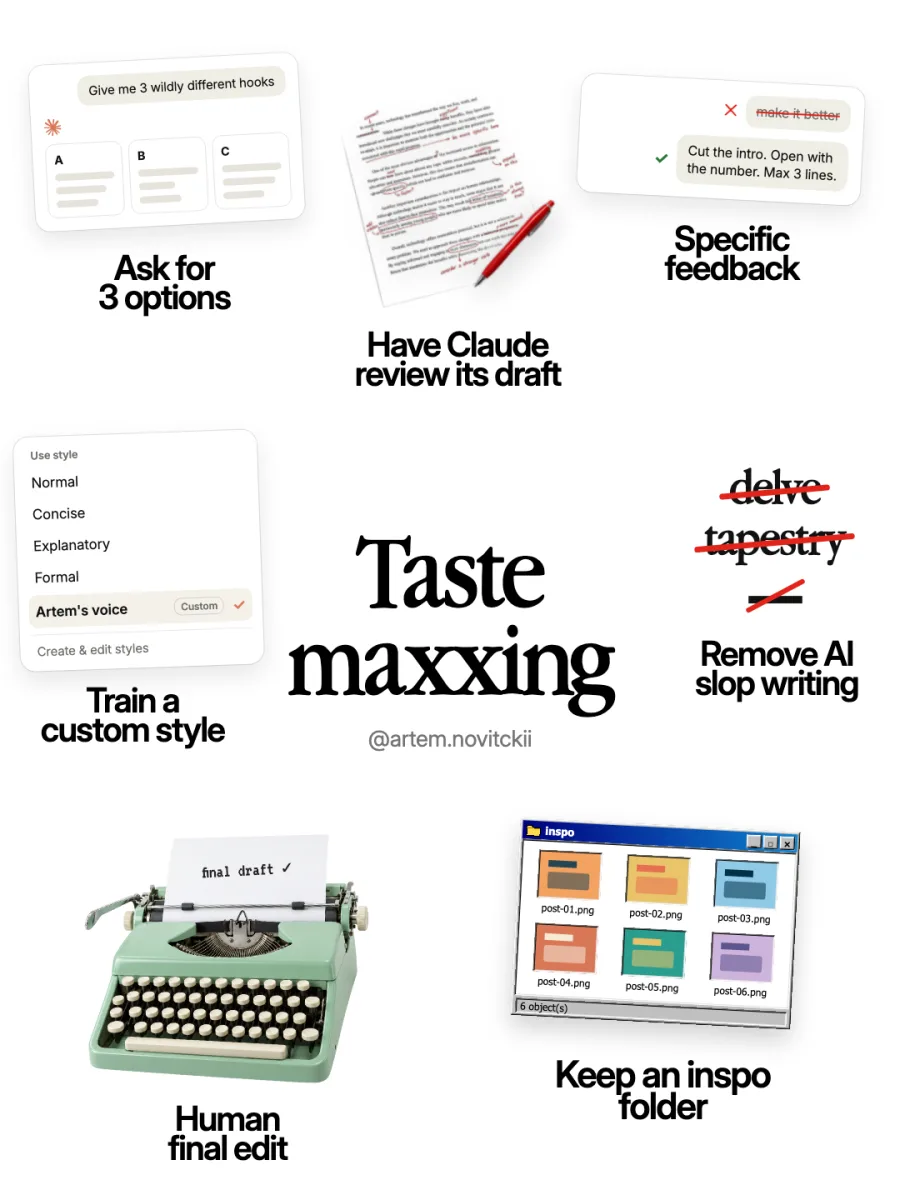
Ask for 3 options
Never accept the first draft. The first answer is Claude's safest, most average guess.
Three options promptGive me 3 wildly different versions: one safe, one bold, one weird. For each, explain in one line who it's for.Then pick the best, or mix them: "Take the hook from B and the ending from C."
5.2
Have Claude review its draft
Claude is a better critic than first-drafter. Make it review its own work before you even read it.
Self-review promptBefore you show me this, review it like a tough editor: 1. What's weak, vague or boring? 2. What would make a reader stop reading? 3. Does it sound like AI anywhere? Then rewrite it fixing every issue, and show me only the final version.5.3
Specific feedback
"Make it better" gets you a random different version. Specific feedback gets you exactly what you want.
❌ Vague ✅ Specific Make it better Cut the intro. Open with the number. Max 3 lines. More engaging Start with a question my audience would actually ask Too long Cut it to 120 words. Keep the story, drop the stats. Doesn't sound like me Shorter sentences. No "leverage". Add one joke. Make it pop Make the headline a bold claim with a number in it Rule: say what to change, where, and how. If you can't, ask Claude: "Give me 5 specific ways this could be stronger" and pick from those.
5.4
Remove AI slop writing
AI slop is writing that screams "a robot wrote this". Readers spot it instantly and stop trusting you.
The usual suspects:
- Words: delve, tapestry, unlock, elevate, seamless, robust, game-changer, testament, realm, navigate, landscape
- Phrases: "In today's fast-paced world", "Let's dive in", "It's not just X, it's Y", "Here's the thing", "At the end of the day"
- Habits: em dashes everywhere, lists of exactly three, every paragraph the same length, ending with a cheesy question
Fix it once, for good: add your banned list to your
CLAUDE.mdand your "how I write" doc. Then run this on anything public:AI slop checkScan this for AI-sounding writing: buzzwords, clichés, em dashes, forced lists of three, and generic openers or closers. List every one you find, then rewrite to sound like a real person talking.5.5
Train a custom style
Styles change how Claude writes across every chat. Claude comes with a few (Normal, Concise, Explanatory, Formal), and you can make your own.
How: in the Claude app, open the style menu in the chat box, choose Create & edit styles, and upload samples of your writing (your best posts, emails, your "how I write" doc). Claude builds a style that writes like you. Name it something like "My voice" and switch it on for anything public.
5.6
Human final edit
Never post anything you haven't read out loud. The last 10% is yours.
Final edit checklist:
5.7
Keep an inspo folder
Your taste is only as good as what you feed it. Keep a folder of stuff you love: posts, emails, designs, ads, landing pages, hooks that made you stop.
How:
- One folder (on your computer or in Notion) called
inspo - Screenshot anything great the moment you see it
- Sort it loosely: hooks, designs, emails, ads
- Every few weeks, upload the best ones to a Claude Project
Learn from your inspoHere are 5 posts from my inspo folder. What do they have in common? Write a short guide to what makes them work, then use it to improve my draft.- One folder (on your computer or in Notion) called
Put it together
Your 7-day setup plan
| Day | Do this | Time |
|---|---|---|
| 1 | Write your CLAUDE.md. Turn on Memory. | 30 min |
| 2 | Write your "how I write" doc. Make your first Project and upload your best work. | 45 min |
| 3 | List your repeated tasks. Turn the top one into a skill. Install skill-creator. | 45 min |
| 4 | Connect Gmail, Calendar and Drive or Notion. Run the tool audit. | 30 min |
| 5 | Try Claude Code on a messy folder. Use plan mode first. | 45 min |
| 6 | Set up your first scheduled task (a morning brief). Add a "Claude is done" hook. | 30 min |
| 7 | Make a custom Style from your writing. Run the AI slop check on your last 3 posts. | 30 min |
After a week, you'll have the full setup. After a month, you won't remember how you worked without it.
Copy and paste
Copy-paste prompt library
That was a brain dump. Turn it into a clear brief: goal, audience, key points,
tone, what to avoid. Show me the brief before writing anything.Make a plan first: steps, files you'll touch, open questions.
Don't start until I approve.Give me 3 wildly different versions: safe, bold, weird.
One line each on who it's for.Review this like a tough editor: what's weak, vague, boring or AI-sounding?
Fix every issue and show me only the final version.I do this task every week: [describe it or voice-dump it].
Turn it into a skill: write the SKILL.md and list the reference files I should add.Brief me on today: my calendar, emails that need a reply, anything due
this week. Max 10 lines. Flag anything urgent at the top.Find every AI-sounding word, cliché, em dash and forced list of three in this.
Then rewrite it so it sounds like a real person talking.What do these examples have in common? Write a short guide to what makes
them work, then use it to improve my draft.FAQ
Do I need to pay for this?
A lot of it works on any plan: a "how I write" doc, examples, screenshots, specific feedback and all the taste moves. Some features and higher limits (heavier Claude Code use, some connectors and agent features) need a paid plan, and what's included changes over time, so check claude.com/pricing for the current list. Claude Duet is currently for Pro and Max users in the US, by waitlist.
I'm not technical. Is Claude Code for me?
Yes. If you can make a folder and type a sentence, you can use it. Start in the Code tab of the desktop app and give it a low-stakes job, like organizing a folder of files.
Is it safe to connect my email and accounts?
You choose every connection and can disconnect any time. Start with read-heavy tasks (summarize, search, draft) and review anything before it's sent. Claude Duet is built to ask before it sends, pays, signs or deletes anything.
What's the difference between a skill, a slash command and a plugin?
A slash command is one saved prompt. A skill is a full playbook Claude can also pick up on its own. A plugin is a bundle that can include several skills, commands, subagents, hooks and connectors.
Where do I start if I only do one thing?
Write your CLAUDE.md or "how I write" doc. Context is the biggest win in this whole guide.
Glossary
- CLAUDE.md
- a text file Claude Code reads at the start of every session, with info about you, your project and your rules
- Project
- a workspace in the Claude app with its own files and instructions
- Memory
- lets Claude remember context from past chats
- Skill
- a folder with a
SKILL.mdthat teaches Claude one job, your way - Slash command
- a saved prompt you run by typing
/name - Plugin
- a bundle of skills, commands, agents, hooks and connectors
- Claude Code
- Claude that can work with files and tools on your computer or in the cloud
- Plan mode
- Claude plans without changing anything until you approve
- Subagent
- a helper agent the main Claude sends to do one job
- Hook
- an automatic action that runs at a set moment, like after every edit
- MCP
- the open standard that lets Claude connect to other apps and tools
- Connector
- a ready-made link between Claude and an app like Gmail or Notion
- Claude Duet
- Anthropic's proactive personal agent (research preview, October 2026)
- Style
- a setting that changes how Claude writes, including custom styles trained on your writing
Made by @artem.novitckii. If this helped, send it to one friend who still uses Claude like a search bar.
Get the full Claude maxxing setup
Drop your email and all five levels unlock right here, with every template and the setup kit download. Plus every other resource in the library. Free, one email a week, unsubscribe anytime.
Photo credits (Wikimedia Commons): KDKA microphone by Fourandsixty, CC BY-SA 4.0 · USB-C cable by ArnoldReinhold, CC BY 4.0 · Macintosh 128K by Grm wnr, CC BY-SA 3.0